Obliga · procurement how-to
Getting your contracts working for you
A practical walkthrough of the day-to-day tasks — adding contracts, switching on renewal reminders, and handling a decision when it comes back.
A — Orientation
Start here — the dashboard
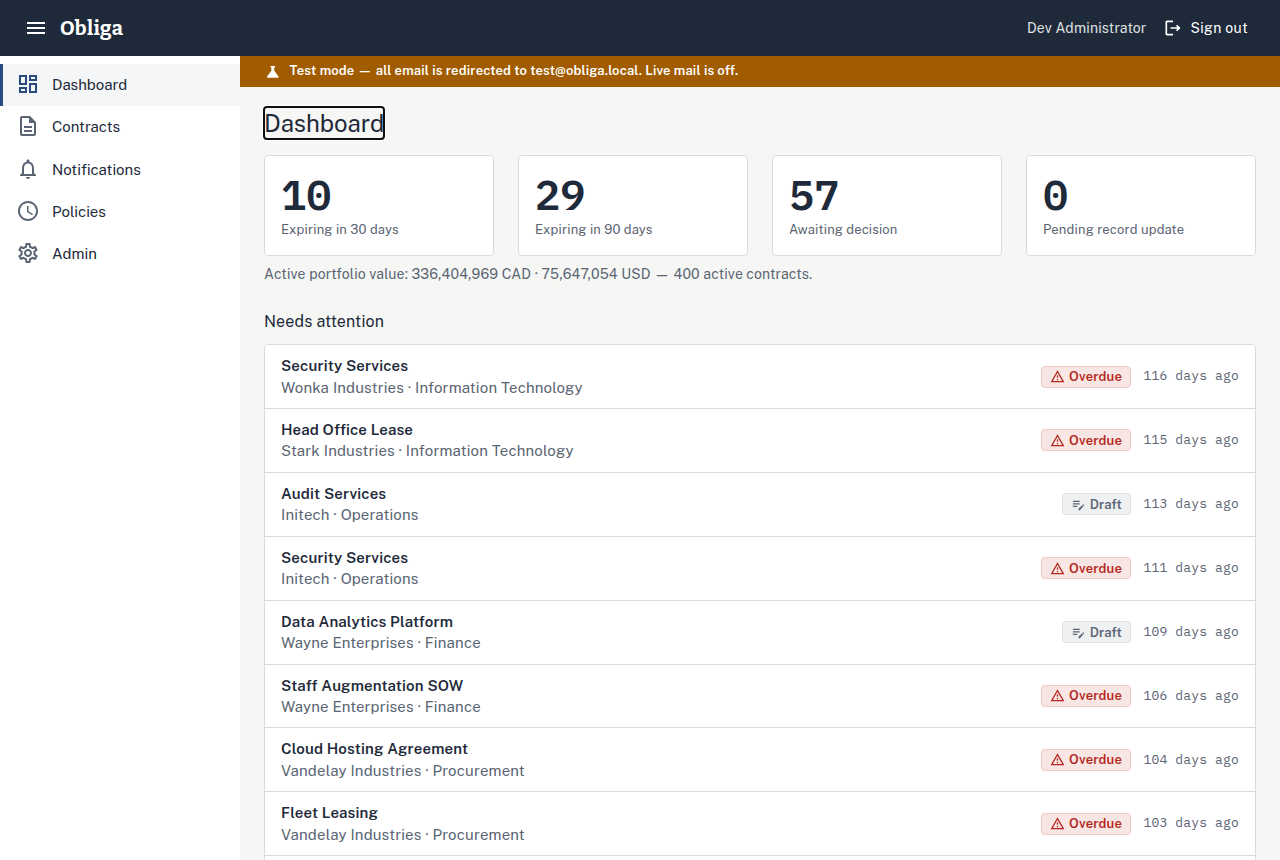
When you sign in, the dashboard answers one question: what needs my attention? Read it left to right.
- The countdown cards across the top show how many contracts expire in the next 30 and 90 days, how many are awaiting a decision, and how many are pending a record update after one.
- Below them, the Needs attention list is sorted by deadline proximity — the most urgent contract is always at the top, each row carrying its status colour and days remaining.
- Click any row to open that contract. Everything else in this guide starts from either the dashboard or the Contracts grid in the left nav.
B — Getting contracts in
Add a contract
For a single agreement you're entering by hand.
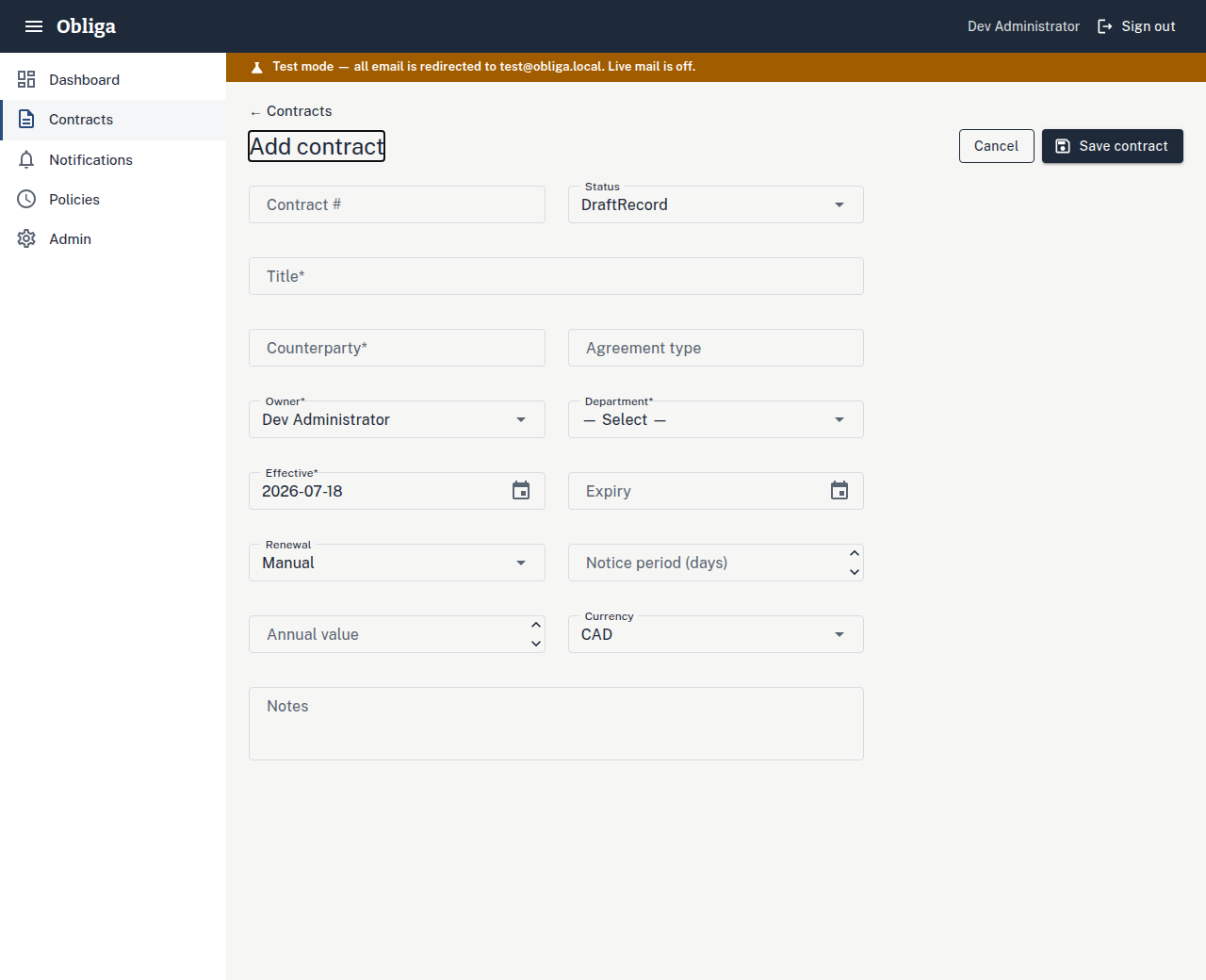
- Go to Contracts in the left nav and choose Add contract (top right).
- Fill in the core details: title, counterparty, owning department, internal owner, effective and expiry dates, renewal type, notice-period days, and estimated value. Required fields are marked; a contract can't be saved with the effective date after the expiry date.
- Give it a reference — your own contract number. It has to be unique; if the number is already in use, Obliga tells you before saving.
- Fill in any custom fields your organization has set up (anything beyond the standard record — a cost centre, a category, a review flag).
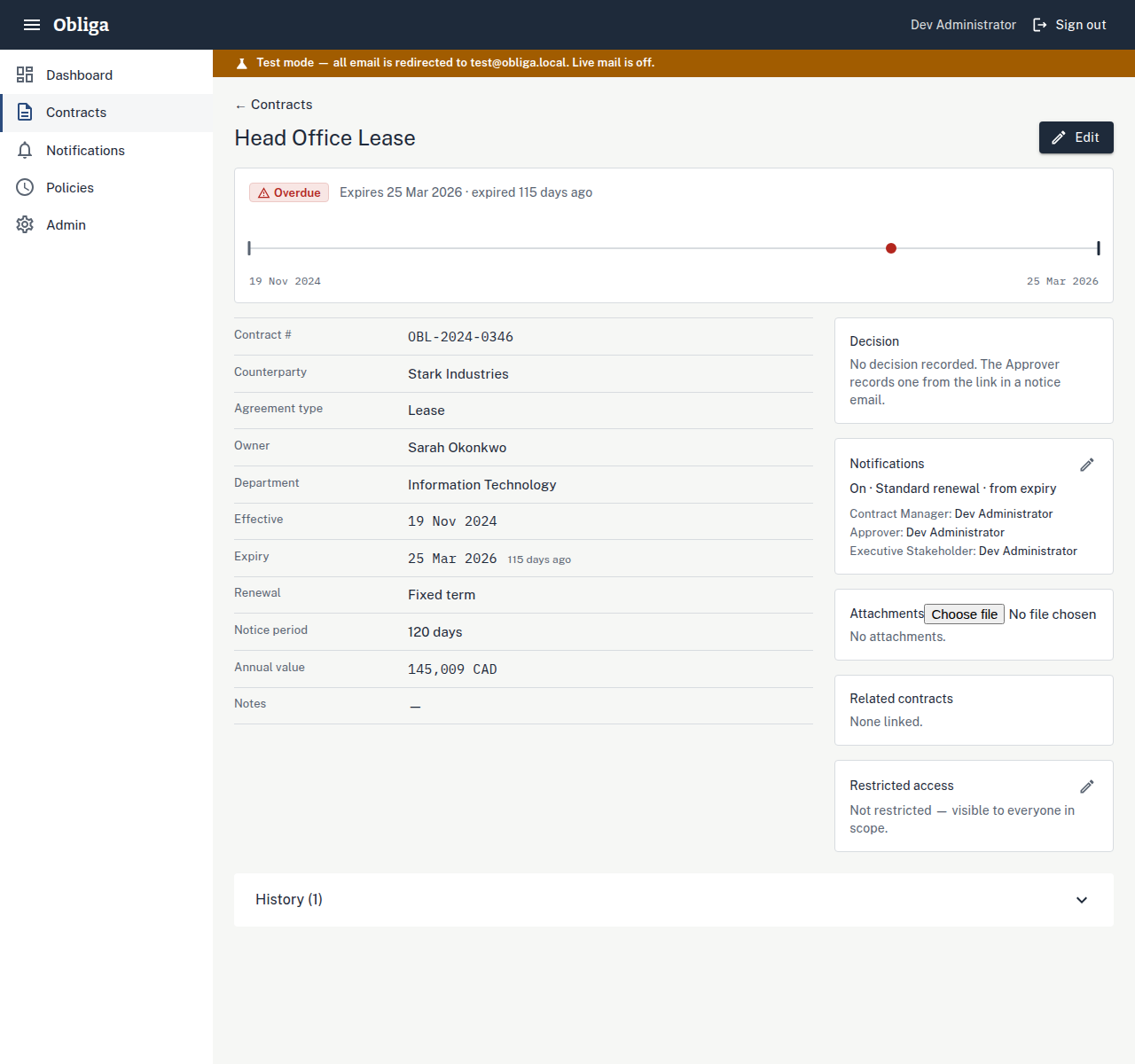
- Save. You land on the contract's detail page, with its lifecycle timeline — the Docket Line — across the top.
Attach the signed document from that same detail page: find the Attachments card and upload the PDF, Word file, or scan. It's stored in your own organization's Azure storage, never anywhere external.
C — Getting contracts in, in bulk
Import a batch from a spreadsheet
Moving off a spreadsheet is the fastest way to get started — you don't re-key anything.
- From the Contracts grid, open Import and upload your
.csvor.xlsxfile. - Map your columns to Obliga's fields — match your spreadsheet's "End Date" to Expiry, and so on. You do this once.
- Review the validation preview. Obliga shows exactly which rows will import cleanly and which have problems (a missing date, a bad value), with the reason, before anything is saved.
- Fix the flagged rows in your file and re-upload, or import the clean ones and handle the rest by hand. Nothing imports until you confirm.
Attachments too
Once your records are in, you can bulk-upload the signed documents and Obliga matches each file to its contract by the reference number in the filename — no need to attach them one at a time.
D — The important one
Switch on renewal reminders
This is what Obliga is for. Reminders are set per contract, so you decide which agreements are worth watching.
- On the contract's detail page, find the Notification settings card and turn notifications on.
- Choose a policy — a reminder schedule your administrator has set up (for example, "first notice 120 days out, then reminders, escalate at 60 days"). You pick from the list; you don't build the schedule yourself.
- Pick the anchor date the schedule counts back from: the expiry date, the notice deadline (expiry minus your notice-period days), or a custom date field.
- Confirm the recipients — who gets each notice (the Approver, and later the Executive Stakeholder). Obliga won't let you enable notifications until every role the policy needs is filled in, so there are no silent gaps.
- Save. The Docket Line now shows every upcoming reminder as a point on the timeline, so you can see the whole plan at a glance.
If you see a "Test mode" banner
An amber bar across the top means the system is in test mode — every email is redirected to a test inbox, not sent to real people, so your organization can validate everything against real data before go-live. Real notices only start once an administrator switches test mode off.
E — Day to day
Find and track contracts
- The Contracts grid lists everything. Sort by any column, filter, or type in the search box — it searches titles, counterparties, and your text custom fields.
- Set up your filters once, then save the view — "Expiring this quarter," "Auto-renew contracts," "My contracts." Saved views sit as tabs above the grid so you jump straight to them.
- A saved view is shareable by link — send a colleague the URL and they open the same filtered list (limited to what they're allowed to see).
- Concluded agreements move to the Closed / history tab automatically — expired, cancelled, and renewed-and-superseded contracts stay out of your active list without being deleted.
F — When a deadline approaches
Handle a renewal decision
When a notice goes out, the Approver gets an email with decision buttons built in — they don't need to log in or find the contract. They click one link and it's recorded.
What the buttons mean, and what happens after each:
Stops all reminders for this cycle and marks the contract "decision recorded — pending record update," waiting for you to set the new expiry date.
Stops all reminders and waits for you to close the contract on the record.
Pauses the current reminder but leaves later notices armed — if the deadline nears with nothing settled, escalation resumes on its own.
Same as Renegotiate — the clock pauses now but the safety net stays in place.
- When a terminal decision (Renew or Cancel) comes in, the contract appears in the dashboard's pending record updates — your cue to act.
- Open it and execute the decision: for a renewal, record the new expiry (Obliga can create the successor record linked to this one); for a cancellation, set it to Closed. That closes the cycle.
The failsafe
If a deadline falls inside the final window (14 days by default) and a decision is still only interim or hasn't been executed, Obliga sends a last-resort alert to you and the Approver — regardless of the schedule, or whether reminders were muted. Nothing slips through in the last stretch.
G — Managing the noise
Pause, stop, or check reminders
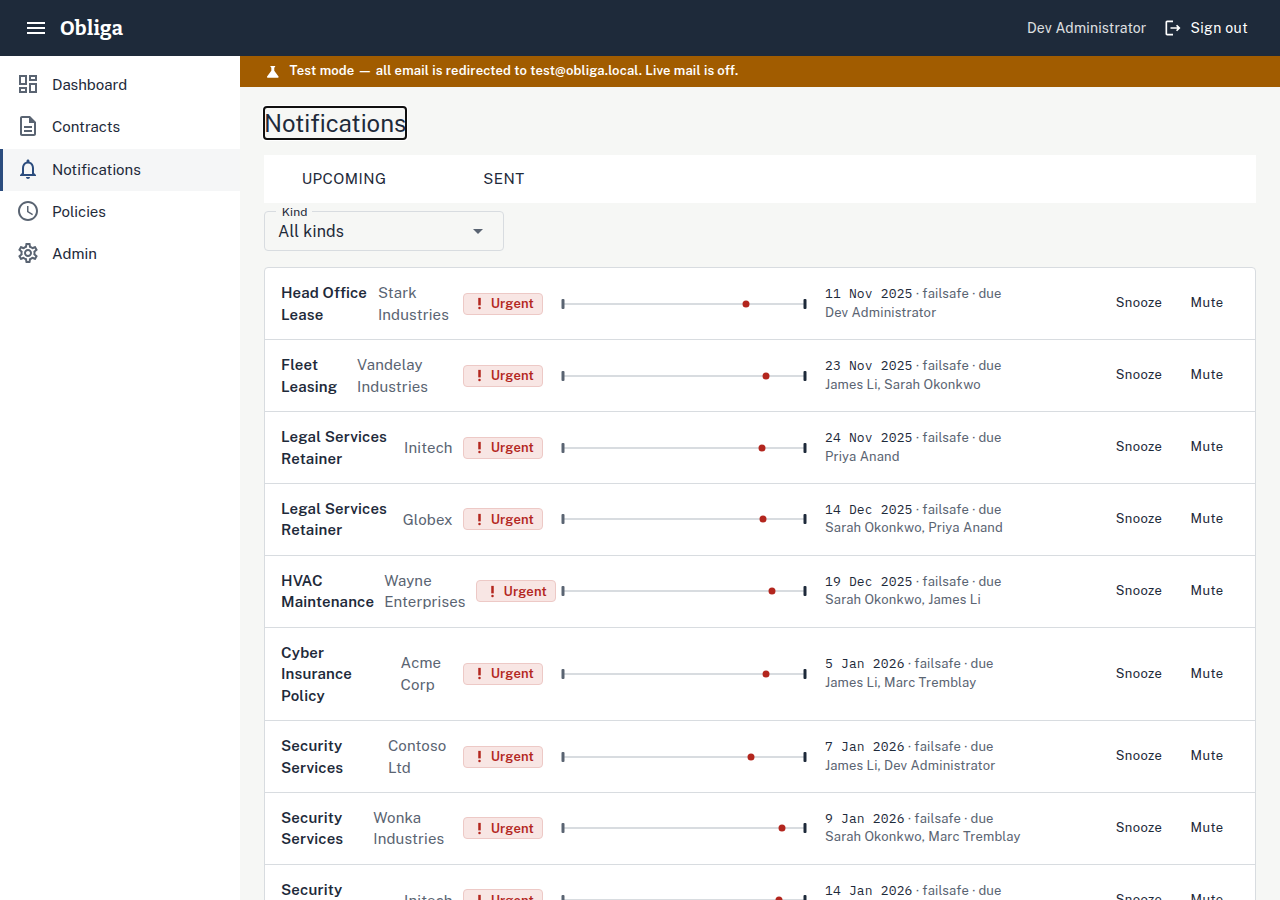
The Notifications console (left nav) is your control panel for what the engine will send and what it already sent.
- The Upcoming tab lists every contract's next reminder, with a mini timeline and the recipients. Filter by notice type to focus.
- Snooze a contract to pause its reminders until a date you pick, or Mute to stop them for this cycle. Either way you enter a one-line reason — it's saved to the audit trail so the decision is on record.
- The Sent tab shows what actually went out, to whom, and whether it delivered. A failed send is flagged in red with a Retry action.
Muting is not forgetting
Even a muted contract still gets the failsafe alert inside the final deadline window — muting quiets the routine reminders, it doesn't switch off the safety net.
H — Reporting
Export and stay informed
- Any grid view exports to CSV or Excel — apply your filters or open a saved view first, and the export matches exactly what's on screen.
- For a compliance record, an administrator can export the full audit trail — every change and decision, with who and when.
- You'll also receive a weekly digest by email — a short portfolio summary of what's coming up, scoped to the contracts you manage. Nothing to set up; it arrives on its own.